Recruit & Onboard Data Requirements
Implementation data needs & how to use the import wizard for people, places, recruiting sources, practice opportunities, & onboarding project activity templates.
Physician Recruitment & Onboarding
Marketware is a robust physician recruitment and onboarding platform. We offer extensive physician details within profiles and incorporate the full scope of the provider recruitment and onboarding processes.
This document will provide details and descriptions of each data point needed to populate your database. This includes setting up users and teams as well as provider profiles, places, sources, practice opportunities, and automated activities for onboard project templates. All fields marked with an * are required.
Database Set Up
During implementation, your Client Success Executive will walk you through each area that will need to be populated to best utilize our platform. 1st and foremost will be the user list.
User Role Definitions
- Admin: View all areas of the platform. Permissions that are set to create and manage all templates, profiles, activities, custom fields, & data imports.
- Full: View teams’ work at a high level. Permissions that are set to manage team-specific templates as well as related profiles & activities.
- Standard: View related providers & activities. Permissions are set to manage any related profiles & activities.
- Limited: View assigned providers & related activities. Permissions that are set to manage assigned activities only.
- Read-Only: View-only access to the entire application.
File 1: User List
| Field Name | Description/Accepted Values |
|---|---|
| First Name | Full last name will be viewable in all areas of the platform |
| Last Name | Full last name will be viewable in all areas of the platform |
| E-Mail Address | User’s company email address — they’ll receive activation & notification emails as well as use this for logging in |
| Assigned Team | Users assigned to specific teams will have the ability to view profiles & opportunities only related to their designated team |
| Time Zone | Determines which area of the platform a user will have access to Recruit Only, Onboard Only, Recruit & Onboard |
| Status | The status will affect what types of notifications & login access users will receive once added: New, Active, Inactive |
| User Role | Determines what a user can view & edit, definitions above & in Database Set Up: Admin, Full, Standard, Limited, Read Only — review permissions here |
| Access Privileges | Determines which area of the platform a user will have access to Recruit Only, Onboard Only, Recruit & Onboard |
File 2: Teams
| Field Name | Description/Accepted Values |
|---|---|
| Team Name* | Team identifiers such as “Central Region” |
| Abbreviation* | 2 letter abbreviation is required to use as the display name for a team — it will appear throughout the platform in designated areas |
| Team Color* | Choose team icon color: sky, blue, navy, aqua, teal, lavender, purple, pink, magenta, yellow, silver, grey, black |
| Team Lead* | Choose an existing user to assign as Team Lead |
Import Wizard
Our platform offers a robust import wizard that allows the client to seamlessly upload key information on their own. The import wizard located in your Marketware Account Settings can accommodate the import of files related to People, Places, Sources, Opportunities, and automated activities for Onboard Project Templates.
Permissions & Restrictions
Permissions
Admins & full users: Can access and use the importer.
Standard, limited, & read-only users: Do not have access to view or use the importer.
Term Definitions
Automated Activities: Refers to the project template activities.
Alpha: Defines a field as taking characters in the alphabet.
Numeric: Defines a field as taking numbers or integers.
Alphanumeric: Defines a field that can take characters and integers.
Restrictions or Pre-Requisites
Some fields may be required on setup before they can be defined within a given import list — such as sources for people records.
Use the Import Wizard
The Importer can be accessed from the account settings.
- Step 1: Choose your free-text import name and choose an import type from the drop-down list. Select the Start Import icon to pop up the full import wizard.
- Step 2: Upload the existing file from your computer, or manually enter the data based on columns requested.
- Step 3: Match column headers, review data, and complete import of file.
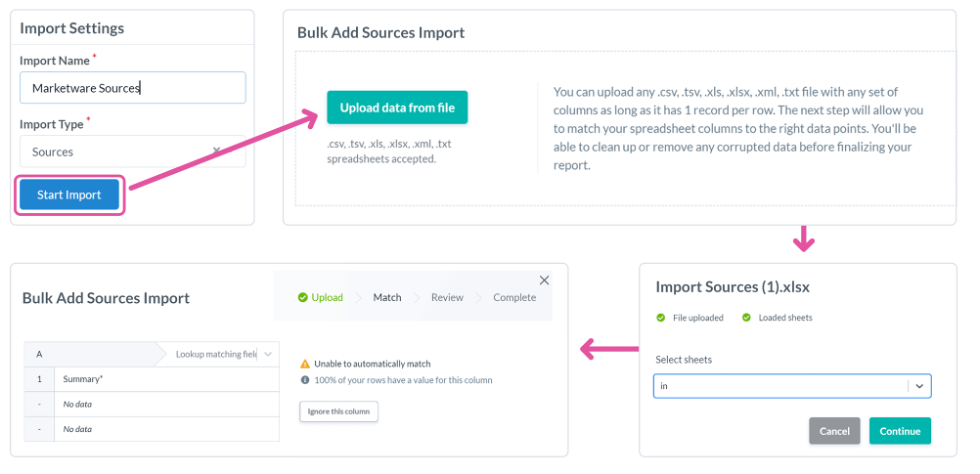
Import File Breakdown
File 3: Places
| Field Name | Description/Accepted Values | Field Type/Format |
|---|---|---|
| Type* | Ambulatory surgery center (ASC), Health System, Hospital, Group Practice, Post-Acute Care, Urgent Care, Other | Drop-down single select; predefined list |
| Name* | Ex: Barrett Family Associates — North | Freeform; alphanumeric |
| Office Phone | Ex: 800-555-1234 | Freeform; 8-digit numeric |
| Other Phone | Ex: 800-222-4321 | Freeform; numeric |
| Fax | Ex: 800-111-5678 | Freeform; numeric |
| Address Line 1 | Ex: 123 Maple Ave. | Freeform; alpha |
| Address Line 2 | Ex. Suite 100 | Freeform; alphanumeric |
| City | Ex: LaGrange | Freeform; alphanumeric |
| State | 2-letter state abbreviation. Ex: IL | Drop-down; predefined list |
| Zip | 5-digit zip code Ex: 60525 | Freeform; numeric |
| Website | Input website quick link to attach to places profile | Free form; numeric |
| NPI | 10-digit numeric number related to the facility; Use NPI as a unique identifier if updates to places need to be done in bulk through the importer | Free form; numeric |
| Parent Organization | Any additional notes needed on a place profile | Freeform; alphanumeric |
| Relationship Manager | Users must already be set up in the system | User email |
| Notes | Any additional notes needed on a places profile | Freeform, alphanumeric |
| Related Teams | Teams must be set up 1st before defining this field Ex: Team 1, Team 2, Team 3 | Name: Comma-separated list |
File 4: Sources
| Field Name | Description/Accepted Values | Field Type/Format |
|---|---|---|
| Summary* | The name of the source | Freeform; alphanumeric |
| Type* | Career Fair, Contingency Firm, Free Online Source, Paid Online Source, Residency Program, Retained Firm, Internal Referral, Unknown, Other | Drop-down; predefined list |
| Active Date | Date started using the source | Date Field; MM/DD/YYYY |
| Inactive Date | Date no longer using source | Freeform; numeric |
| Status | Active, Inactive | Freeform; numeric |
| Notes | Any additional notes needed regarding the source | Freeform, alphanumeric |
File 5: People
| Field Name | Description/Accepted Values | Field Type/Format |
|---|---|---|
| Type* | Physician, Advanced Practice Provider, Allied Health Professional, Staff, Other | Drop-down; predefined list |
| Prefix | Dr., Ms. Mrs., Mr. | Drop-down; predefined list |
| First Name* | Ex: Jill | Freeform; alphanumeric |
| Last Name * | Ex: Dane | Freeform; alphanumeric |
| Middle Name | Ex: Lynn | Freeform; alphanumeric |
| Suffix | Sr., Jr., II, III | Drop-down; predefined list |
| Medical Degree | MD, DO, DBH, DPM, DMD, DDS, PhD, PT, OT, RT, SLT, AuD, DC, OP PA, NP, CRNA, CNM, ACNP, MBBS | Drop-down; predefined list |
| Specialty | A detailed list of specialties can be found here | Drop-down; predefined list |
| Sub Specialty | Sub-specialties are dependent on the specialty. Please refer to this list of sub-specialties we accept, mapped to their specialty | Drop-down; predefined list |
| NPI | 10-digit numeric provider identifier — not supported for office staff & other profile types | Freeform; 10-digit numeric |
| Employee ID | Numeric unique ID — available for all profile types. To use the importer for updates, ensure Employee ID is used | Free form; numeric |
| Title | Ex: MD, ACP, etc. | Freeform; alphanumeric |
| Practice Status | Full Time, Part Time, Locums, Training, On Hold, Retired, Deceased, Inactive — Assumed, Active — Assumed, Resident, Student, Fellow, Per Diem, PRN, Independent Contractor | Drop-down; predefined list |
| Gender | Female, Male, Non-binary | Drop-down; predefined list |
| Ethnicity | White, Black, Asian, Pacific Islander, Hispanic | Drop-down; predefined list |
| Birthdate | MM/DD/YYYY | Date |
| Recruit Status | Active, Inactive, Contracted, Passive, Employed, New, Qualified, In Progress, PRN | Drop-down; predefined list |
| Recruiting Inactive Reasons | Accepted Another Position Externally, Accepted Another Position Internally, Background, Candidate Declined Next Step, Candidate Declined Offer, Candidate more qualified for a different PO, Certification, Compensation, Contract Details, Cultural Fit, Do Not Contact, Hired Another Candidate, Licensing, Licensure, Location, No Opportunity, No Response, Offer Rescinded, Other, Other Candidate More Qualified, Personal Needs, Position Canceled or On-Hold, Professional Needs, Qualifications, Skillset, Too much time has passed since applying, Undesirable work/call schedule, Unknown, Visa Allocations, Visa Requirements | Drop-down, multi-select comma-separated; predefined list |
| Recruiting Inactive Reason Notes | Use to elaborate on inactive reasons | Freeform; alphanumeric |
| FTE Status | Full Time, Part Time, Locum, PRN, Per Diem, 1.0, .75, .5, .25 | Drop-down; predefined list |
| Career Interest | Actively looking, casually looking, not looking but open to offers, not open to offers | Drop-down; predefined list |
| Available for Hire | MM/DD/YYYY | Date |
| Work Authorization | US Citizen, J-1, H-B1, Other | Drop-down; predefined list |
| Recruiter | The user must already be in the system | User email |
| Practice Manager | The user must already be in the system | User email |
| Source Name | The source must already be in the system | Name; Comma-separated list |
| Date Touched | The date a provider was sent by source; MM/DD/YYYY | Date |
| Related Teams | The team must already be in the system Ex: Team 1, Team 2, Team 3 | Name; Comma separated List |
| Home Phone | Ex: 800-555-1234 | Freeform; 8-digit numeric |
| Work Phone | Ex: 800-334-2224 | Freeform; 8-digit numeric |
| Mobile Phone | Ex: 800-442-2444 | Freeform; 8-digit numeric |
| Personal Email | Ex: jill.dane@testmail.com | Freeform; alphanumeric |
| Work Email | Ex: jill.dane@hospital.com | Freeform; alphanumeric |
| Linkedin URL | Freeform; alphanumeric | |
| Home Address Street 1 | Ex: 123 Test Street | Freeform; alphanumeric |
| Home Address Street 2 | Ex: Apt 22 | Freeform; alphanumeric |
| Home Address City | Ex: Everett | Freeform; alphanumeric |
| Home Address State | 2-letter state abbreviation. Ex: WA | Drop-down; predefined list |
| Home Address Zip | 5-digit zip code Ex: 98204 | Freeform; numeric |
| 4-year Degree Institution | Name | Freeform; alphanumeric |
| 4-year Degree Start Month | MM | Date |
| 4-year Degree Start Year | YYYY | Date |
| 4-year Degree End Month | MM | Date |
| 4-year Degree End Year | YYYY | Date |
| Medical School Institution | Institution Name | Freeform; alphanumeric |
| Medical School Start Month | MM | Date |
| Medical School Start Year | YYYY | Date |
| Medical School End Month | MM | Date |
| Medical School End Year | YYYY | Date |
| Residency Institution | Institution Name | Freeform; alphanumeric |
| Residency Start Month | MM | Date |
| Residency Start Year | YYYY | Date |
| Residency End Month | MM | Date |
| Residency End Year | YYYY | Date |
| Fellowship Institution | Institution Name | Freeform; alphanumeric |
| Fellowship Start Month | MM | Date |
| Fellowship Start Year | YYYY | Date |
| Fellowship End Month | MM | Date |
| Fellowship End Year | YYYY | Date |
| Employment 1 Title | Jo Title | Freeform; alphanumeric |
| Employment 1 Workplace | Employer Name | Freeform; alphanumeric |
| Employment 1 Start Month | MM | Date |
| Employment 1 Start Year | YYYY | Date |
| Employment 1 End Month | MM | Date |
| Employment 1 End Year | YYYY | Date |
| Employment 1 Description | Job Description | Freeform; alphanumeric |
| Employment 2 Title | Job Title | Freeform; alphanumeric |
| Employment 2 Workplace | Employer Name | Freeform; alphanumeric |
| Employment 2 Start Month | MM | Date |
| Employment 2 Start Year | YYYY | Date |
| Employment 2 End Month | MM | Date |
| Employment 2 End Year | YYYY | Date |
| Employment 2 Description | Job Description | Freeform; alphanumeric |
| Notes | Any additional notes needed regarding the person | Freeform; alphanumeric |
File 6: Opportunities
Note: All opportunities will be imported as active.
| Field Name | Description/Accepted Values | Field Type/Format |
|---|---|---|
| Opportunity Name* | Ex: Orthopaedic Hand Surgeon — North | Freeform; alphanumeric |
| Related Place* | Place must already be in the system | Name |
| Type* | Backfill, Deceased — Replacement, Growth, New Hire, New Service Line, Talent Pool, Retired — Replacement, Succession Planning, Unknown, Resigned — Replacement, Terminated — Replacement | Drop-down; predefined list |
| Active Date* | MM/DD/YYYY | Date |
| Target Fill Date* | MM/DD/YYYY | Date |
| Openings* | Number of openings to fill (Range 1-150) | Integer |
| Manager | The user must already be in the system | User email |
| Workflow Template Name* | A workflow template must be set up in the system | Name |
| Related Teams | Teams must be set up 1st before defining this field Ex: Team 1, Team 2, Team 3 | Name: comma-separated list |
File 7: Project Template Automated Activities
Note: The project template needs to be created first, but project groups can be created via import.
| Field Name | Description/Accepted Values | Field Type/Format |
|---|---|---|
| Template Name* | Ex: Orthopaedic Hand Surgeon — North | Name |
| Type* | Activity Type from Activity Type List – System defaults include to-do, communication, event & email; custom types must be set up 1st before use here | Drop-down; predefined list |
| Summary* | Ex: Obtain NPI, DEA, State Licensure, etc. | Freeform; alphanumeric |
| Schedule Date* | 0-365 — Range will be dictated by scheduled date interval; use 0 to indicate activity should be on start date — see mapping in next field for examples | Integer |
| Schedule Date Interval* | User (assigned to individual user), Group Lead (assigned to the user assigned as this activity’s project group lead), Role (assign based on a role assigned to the provider) | Drop-down; predefined list |
| Before/After* | Indicates if the activity should be before or after the start date | Drop-down; predefined list |
| Project Group* | Ex: Marketing, Administration, CVO | Freeform; alphanumeric |
| Group Color* | Sky, Blue, Navy, Aqua, Teal, Lavender, Purple, Pink, Magenta, Yellow, Silver, Gray, Black | Drop-down; predefined list |
| Group Lead* | The user must be added to system already and in a new or active status | User Email |
| Assigned To* | User (assigned to individual user), Group Lead (assign to the user assigned as this activity’s project group lead), Role (assign based on a role assigned to the provider) | Drop-down; predefined list |
| User Assignee (Required if User assigned to is selected) | The user must be added to the system already and in a new or active status | User email(s); to add more than one user separate with a comma |
| Role (Required if Role assigned to is selected) | Practice Manager, Onboard Coordinator, Recruiter | Drop-down; predefined list |
| Tags | Must be created in the system already | Activity Tag Name |

