Recruit & Onboard Data Requirements — Onboard Activities
This guide will provide details and descriptions of each data point needed to populate your database. This includes setting up users and teams and provider profiles, places, sources, practice opportunities, and automated activities for onboard project templates.
Import Wizard
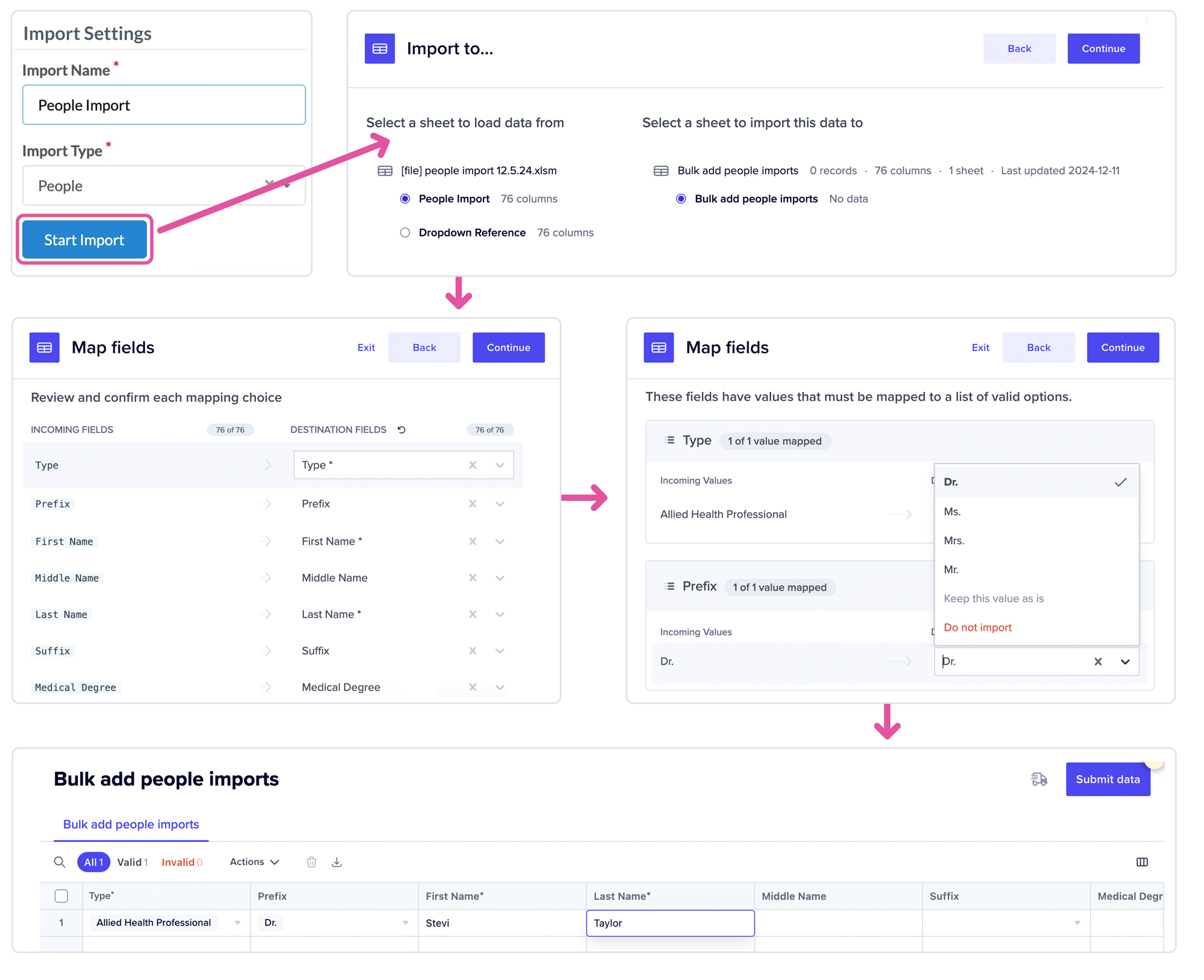
Our platform offers a robust import wizard that allows clients to seamlessly upload key information independently. The wizard, located in your Marketware Account Settings, can accommodate the import of files related to People, Places, Sources, Opportunities, and automated activities for Onboard Project Templates & Recruit Workflow Templates.
- Step 1: Enter your free-text import name and select an import type from the drop-down list. Then, select the Start Import icon to open the full import wizard.
- Step 2: Upload an existing file from the computer, or manually enter the data based on the columns requested.
- Step 3: If uploading a file, select the sheet to import.
- Step 4: Confirm and match file headers to system headers.
- Step 5: Confirm and map file dropdown field options to system field dropdown options.
- Step 6: Review the imported data and click submit data to import file.
File 7: Automated Activities for Onboard Project Templates
*required fields
| Field Name | Description/Accepted Values | Field Type/Format |
|---|---|---|
| Template Name* | Ex: Orthopaedic Hand Surgeon — North | Alpha/Numeric |
| Type* | Activity Type from Activity Type Lists — System defaults include: To-Do, Communication, Event, Email, Interview, Offer Sent, Offer Response | Single Select Dropdown |
| Interview Type | Required if Interview activity is selected* Onsite, Virtual |
Single Select Dropdown |
| Summary* | Ex: Obtain NPI, DEA, State Licensure, etc. | Alpha/Numeric |
| Schedule Date* | 0-1095 (3 years) — range will be dictated by scheduled date interval; use 0 to indicate activity should be on the start date | Numeric |
| Scheduled Date Interval* | Minutes (0-60), Hours (0-24), Days (0-1095), Weeks (0-156), Months (0-36), Years (0-3) | Single Select Dropdown |
| Before/After* | Before or After the start date | Single Select Dropdown |
| Project Group* | Ex: Marketing, Administration, CVO | Alpha/Numeric |
| Group Color* | Sky, Blue, Navy, Aqua, Teal, Lavender, Purple, Pink, Magenta, Yellow, Silver, Gray, Black | Single Select Dropdown |
| Group Lead* | User email; the user must be added to the system already and in a new or active status | Email Address |
| Assigned To* | User (assigned to individual user), Group Lead (assigned to the user assigned as this activity’s project group lead), Role (Assigned based on a role assigned to the provider) | Single Select Dropdown |
| Role – Required if the Role assigned to is selected | User (assigned to individual user), Group Lead (assigned to the user assigned as this activity’s project group lead), Role (Assigned based on a role assigned to the provider) | Email Address |
| User email(s); the user must be added to the system already and in a new or active status; to add more than one user separate with a comma | Practice Manager, Onboard Coordinator, Recruiter | Single Select Dropdown |
| Tags | Activity Tag Name; must be created in the system already | Multi Select Dropdown |
| Category | Single select option from a custom list. Categories must be set up 1st to use | Single Select Dropdown |
| Description | Expands upon the summary, include any details relevant to completing an activity | Alpha/Numeric |
Please feel free to contact us with any questions or assistance at support@marketware.com.
Date: January 28 2025
Subject: Physician Onboarding

