Activity Escalation Rules – Recruit
Product Guide Library > Recruitment > Activity Escalation Rules – Recruit
Activity escalation rules is an optional item to indicate when an activity requires an escalation assigned user to follow up on overdue activities.
Permissions & Restrictions
Permissions
Admins & Full Users: Can enable & edit escalation rules
Standard, Limited & Read-Only Users: Can view if an activity has escalation rules but cannot add or edit this option.
Term Definitions
Escalation Assignee: A user who will be notified if the activity they are assigned goes overdue.
Escalation Rule: Identifies when a notice should go out once the activity goes overdue.
Restrictions or Pre-Requisites
This is only available for the Recruit & Onboard products. As such, when creating an activity the activity must have Recruit and or Onboard as a product permission.
Overview
Within the recruiting and onboarding workflows, Marketware understands the importance of follow-up when vital activities go unchecked past their due dates. Activity Escalation Rules allow users to define an assignee & rules to ensure those vital items are not missed past a certain point. Whether tracking credentialing that is imperative to keep on track for a provider’s start date or booking a flight for an on-sight for a potential candidate, use the escalation rules to impart accountability and team work to get items most important to your processes completed quickly.
Assigning Escalation User
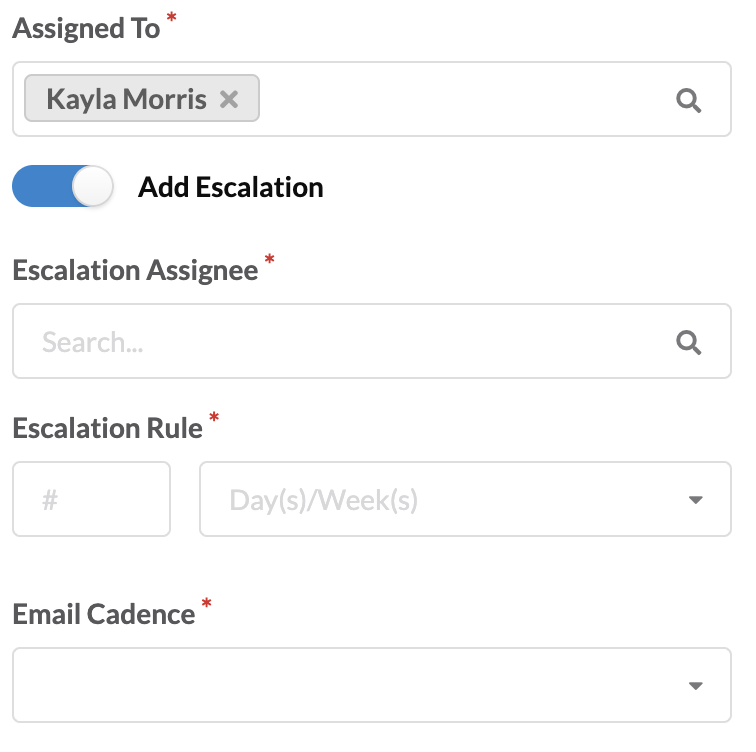
When creating a new ad hoc activity (from the + menu) or creating an automated activity within a template – workflow & project templates respectively, Admins and Full users will have the option to enable Escalation Rule. By default, this option is disabled. Once enabled, users can identify the escalation assignee, escalation rule and email cadence.
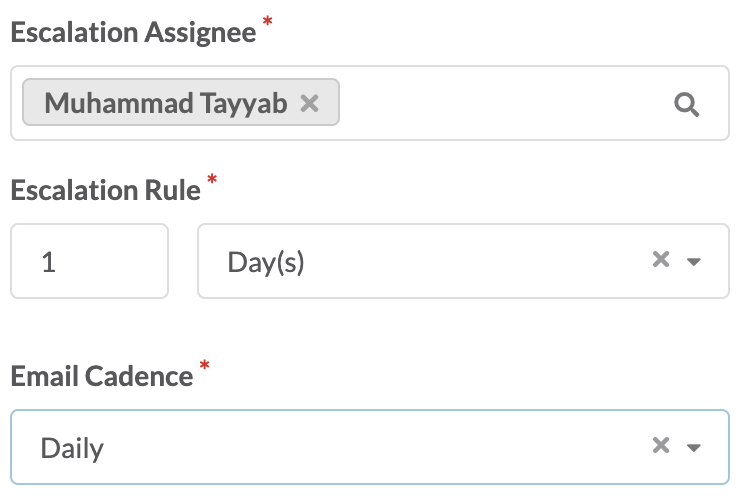
- Escalation Assignee: Pulls in active & new users in the system. Escalation Assignee cannot be the assignee of an activity. This is the person who will be notified when the activity goes overdue to follow up with the activity assignee. This can be multiple users in the case that more than 1 manager should be notified of an overdue activity.
Note* New users will not get an email until their user has been made active. We allow new users to be assigned in the case of pre-planning which is especially essential for template flows.
- Escalation Rules: Determines how far past the overdue date the escalation assignee should be notified that the activity has gone overdue. This can be noted in # of day(s) or week(s).
- Escalation Email Cadence: Allows the manager to identify how often a notice should go out once the activity has reached the escalation rule. Options include Daily, Weekly or Does Not Repeat. Daily & weekly options will send an email out to the assignee & escalation assignee on that regular cadence until the activity is complete or the due date is adjusted. If it is only important to notify one time once the activity is overdue, select the ‘does not repeat’ function.
Email Notices
Email notices will be sent to the assignee of the activity as well as the escalation assignee(s) to prompt action on the activity. These emails cannot be unsubscribed from as these escalated activities are important enough that a notice should not be ignored.
What to Know
Escalation rules only apply once an activity is overdue. The due date must be changed or the status of the activity must move to completed for the notices to cease going out.
Bulk Assignment
To manage escalation assignment, Admin and Full users will have the ability to edit the escalation assignee from the activity list. This function is especially helpful when a manager goes on vacation and these escalations need to be re-assigned or additional managers need to be assigned to an escalation rule.
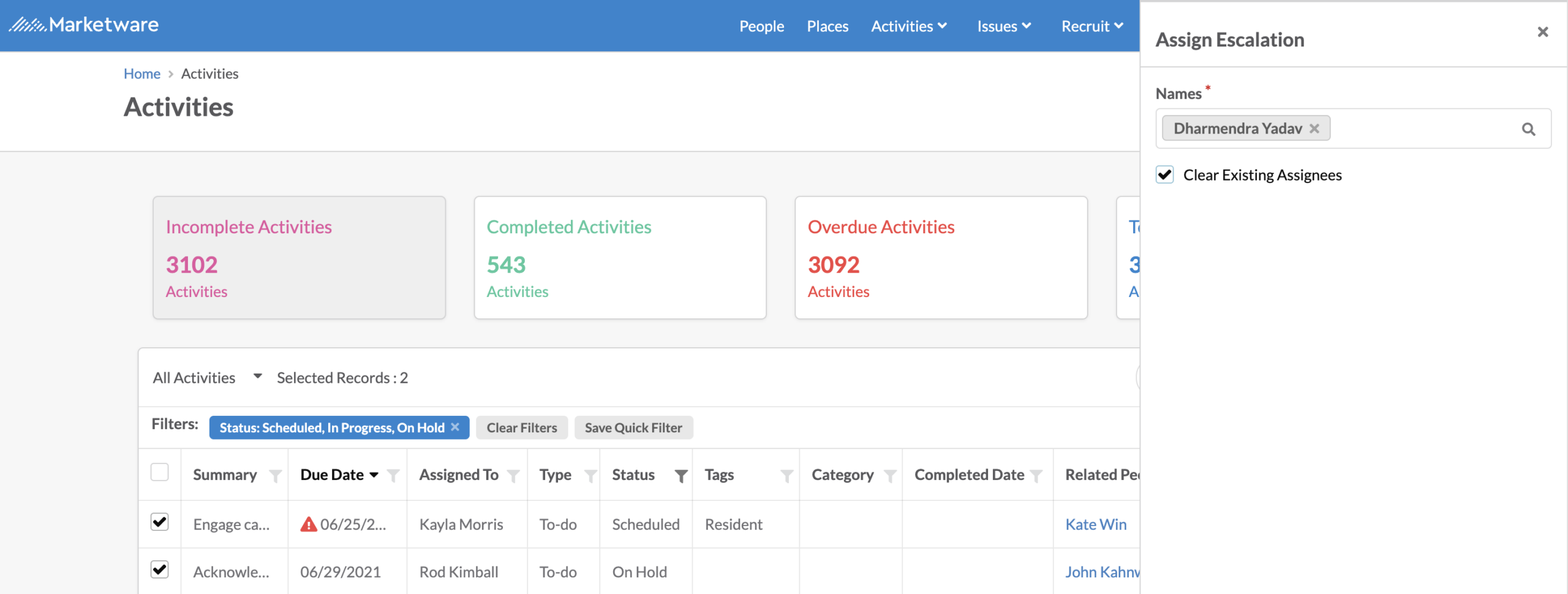
Select 1 or more activities to add escalation assignees for.
From the action dropdown click assign escalation.
This will open a panel to identify the escalation assignee – users can input an active or new user and choose to clear the existing assignee or, when this option is left unchecked, it will add the new assignee to the escalation assignee.
Good to know! If the rules were already enabled on the activity selected, it will maintain the escalation rule & email cadence. If this was not previously selected for an activity wherein an assignee was bulk added, a rule of 1 day after overdue & an email cadence of do not repeat will be applied to the activity.