Activity Categories
Product Guide Library > Physician Strategy Suite > Activity Categories
Report on unique metrics for your organization by creating custom activity categories.
Permissions & Restrictions
Permissions
Admins: Can add, view, edit, or delete all activity categories.
Full, Standard, Limited & Read-Only Users: Can only view activity categories in account settings.
All Users: Can assign categories on an activity.
Term Definitions
Activity Categories: Activity custom fields are created under the category field of the activity form. Users can create custom categories to log their tasks. Categories should be related to the activity.
Restrictions or Pre-Requisites
Be sure to set up your Activity categories before creating new activities.
Activity categories can be deleted or made inactive. Note, that delete will remove them entirely from the system and associated activities. To retain a history but remove the category from the dropdown, make the category inactive.
A category is a required field if the activity is related to an initiative — however, this field is not required if the initiative is not related.
Create an Activity Category
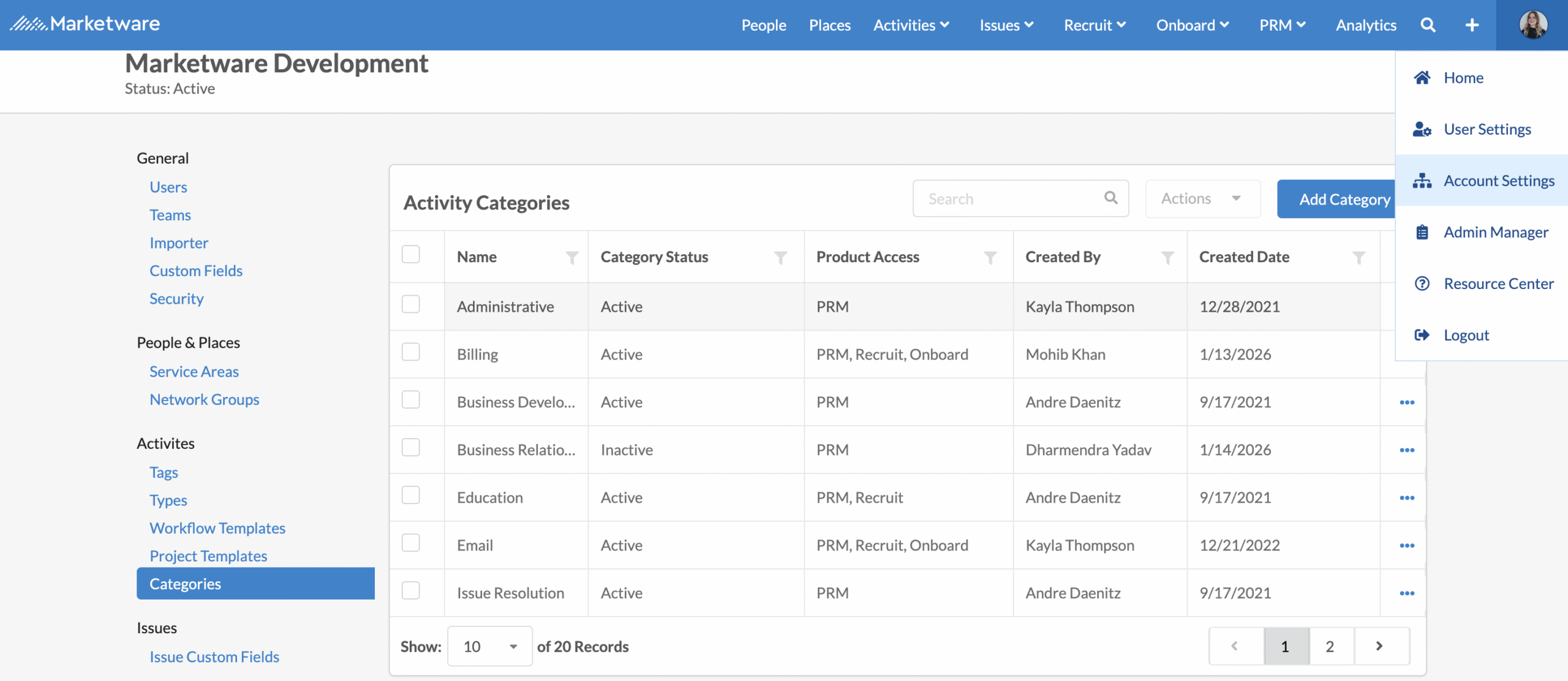
- Click the settings gear in the top right.
- Select Account Settings.
- Navigate to Categories in the left menu.
- Click Add New Category.
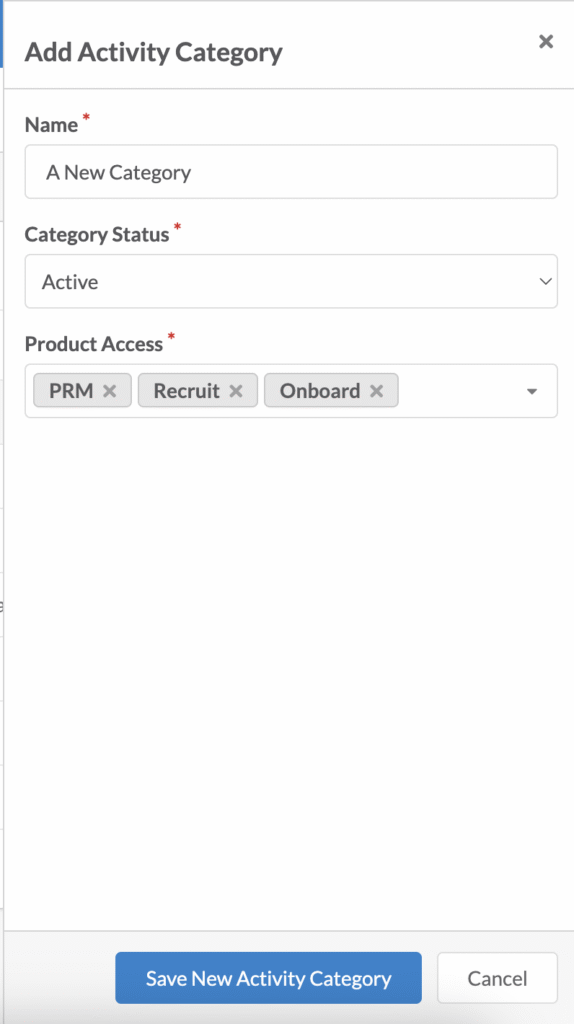
Type a name, status will default to active & product access will default to your user access.
Product access will determine who can use the category.
Status determines if the category displays in the category dropdown for an activity.
Once the active category is saved, it will be searchable on creating or editing an activity.
Edit an Activity Category
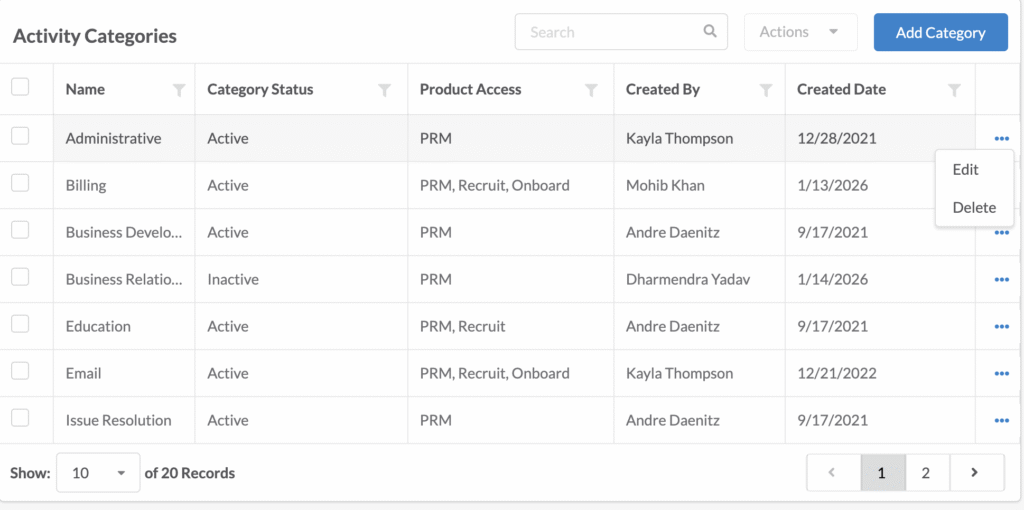
Once an activity category has been created, you can edit name, status or product access by clicking the three ellipses next to the line item.
Edits will be updated across all activities that are using this category.
Note: If you no longer wish to have a category display in the dropdown but want to maintain a history of the category for reporting purposes, update the activity status to inactive.
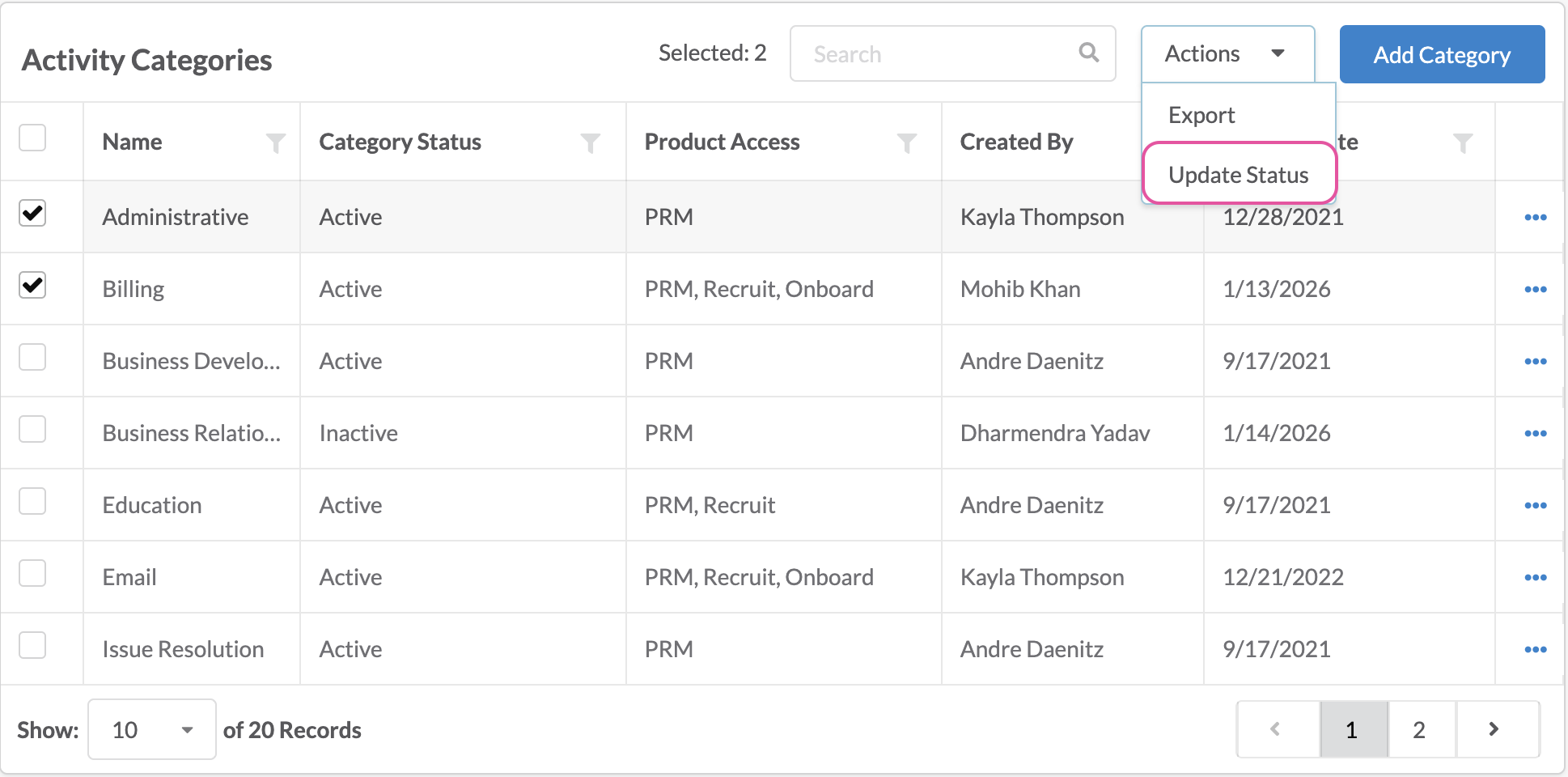
Activity category status’s can be bulk updated by selecting 1 or more categories and clicking the actions button.
Delete an Activity Category
Once an activity category has been created, you can delete the label by clicking the three ellipses next to the category line item. Once deleted, this will be removed from any activities currently using the category. Consider making a category inactive if you wish to retain the category on initiatives.